
Plainmark guide
How to convert PDF to Markdown without losing structure.
The reliable workflow is not “convert and trust.” Start with a text-based PDF, compare the output with the original, then fix structure before you export.
The short answer
To convert a PDF to Markdown, upload a text-based PDF, extract its content, compare the generated Markdown with the original pages, correct structural errors, and export the final .md file.
Before you convert the PDF
Check whether the PDF contains a text layer
Open the document and try to select one sentence. Selectable words usually indicate a text layer. Scanned pages often contain only images, even when the words look sharp on screen. Adobe explains that tagged PDFs can provide logical structure and reading order; untagged files may produce less satisfactory results. Read Adobe’s accessibility documentation.
Know what Markdown can represent
Markdown is designed for readable structure: headings, paragraphs, lists, links, images, quotes, and code. The CommonMark specification describes a Markdown document as block elements such as paragraphs, headings, lists, quotes, and code blocks, plus inline elements including links and images. It does not reproduce the exact visual layout of a PDF.
Keep the source document
A Markdown export should not replace the original file until you have reviewed it. Keep the PDF as the reference for page order, footnotes, tables, captions, and image placement.
Convert PDF to Markdown in three steps
1. Upload the document
Open Plainmark and choose a PDF up to 50 MB. Reports, academic papers, manuals, and slide decks with embedded text are the strongest candidates.
2. Compare both versions
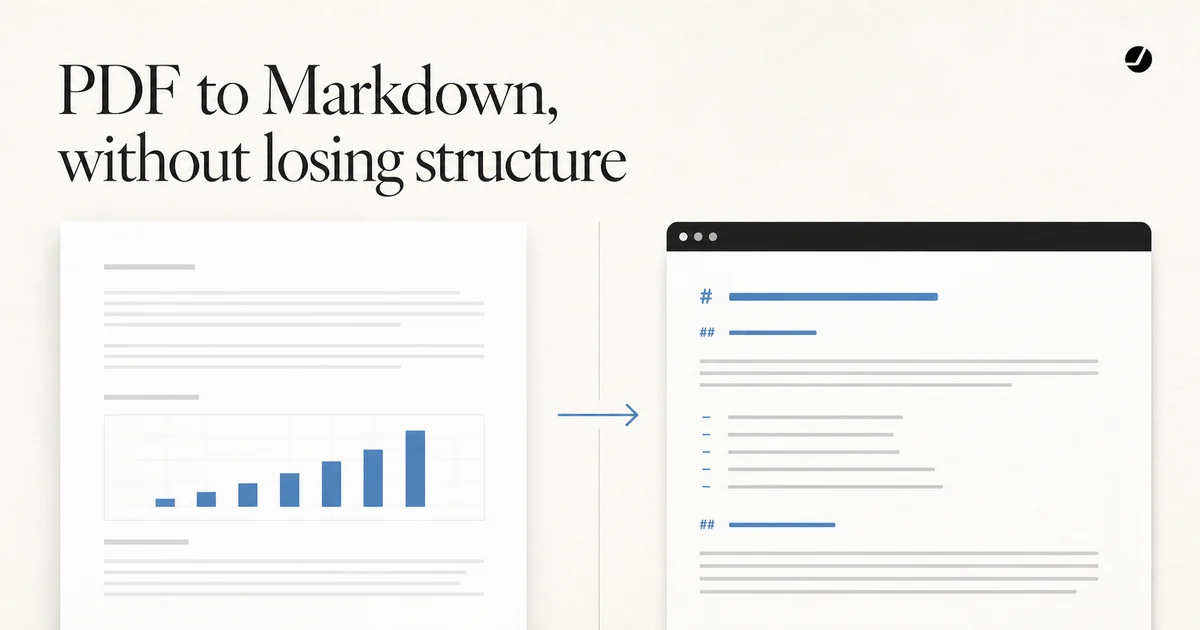
Plainmark places the original PDF on the left and editable Markdown on the right. Read the result in sections instead of scanning only the first page. Formatting problems often appear where the layout changes.
3. Edit and export
Correct heading levels, broken lists, image locations, and unwanted line breaks. Use Preview to check the rendered hierarchy, then copy the Markdown or export an .md file.
# Research report

## Executive summary

Demand increased across the selected markets.

## Key findings

- First finding
- Second finding
A reproducible Plainmark test
On August 18, 2026, we created a one-page test PDF containing a title, section headings, paragraphs, a bullet list, and a two-column table, then converted it with the same Plainmark code used by the web tool.
The title, headings, paragraphs, and bullet list were preserved. The table content was extracted in reading order but flattened into one text line, so rebuilding the table remained a manual review task. This is a useful example of why side-by-side checking matters.
# Remote Research Workflow Brief

## Executive summary

A small research team tested a review-first workflow...

## Key findings

- Headings and paragraphs provided the most reliable structure.
- Lists remained readable after a short manual review.
Download the test PDF and run the same conversion yourself.
What to review before exporting
Heading hierarchy
The document title should usually be one H1. Major sections should use H2, followed by H3 for subsections. A converter may mistake large body text or page headers for headings.
Paragraph breaks and hyphenation
PDF text is stored for page rendering, and its content order may differ from the logical order a person sees. The PDF Association documents this extraction problem. Check for sentences split at line endings, words broken by hyphens, and paragraphs joined across columns.
Lists and tables
Verify list nesting and numbering. Tables are more difficult because a visual grid does not always have an obvious linear reading order. For important tables, compare every row and rebuild the Markdown table manually when needed.
Images and captions
Confirm that extracted images appear near the correct paragraph and that captions remain attached to the right image. Decorative shapes may be extracted even when they add no meaning.
Common conversion limits
- Scanned documents: Plainmark does not currently run OCR.
- Multi-column pages: reading order may need correction.
- Complex tables: cells can lose their original relationships.
- Equations and forms: visual notation may not translate into standard Markdown.
- Highly designed brochures: the content can be extracted, but the visual composition cannot be preserved in Markdown.
Convert a PDF with the original in view.
Upload a text-based document, review the result side by side, and export when it is ready.
Open Plainmark