
Plainmark guide
How to convert a webpage to Markdown in three steps.
Paste a public URL, remove navigation and other page clutter, compare the result with the source, then clean the Markdown before you reuse it.

The short answer
To convert a webpage to Markdown, start with a public URL, extract the page’s readable content, remove navigation and repeated interface text, preserve useful headings, links, lists, and images, then compare the Markdown with the source before export.
Why convert a webpage to Markdown?
A webpage is built for browsing. Its main content may sit beside menus, cookie notices, promotional blocks, forms, and repeated footer links. Markdown gives you a smaller, portable document that is easier to review, quote, edit, and move into notes, documentation, research folders, or an AI workflow.
HTML semantics help browsers and tools understand what content means, while Markdown expresses a simpler document structure. The MDN guide to semantic HTML explains why meaningful elements matter. The CommonMark specification defines the headings, paragraphs, lists, links, images, and other elements a Markdown document can represent.
Convert a webpage to Markdown in three steps
1. Choose a public webpage
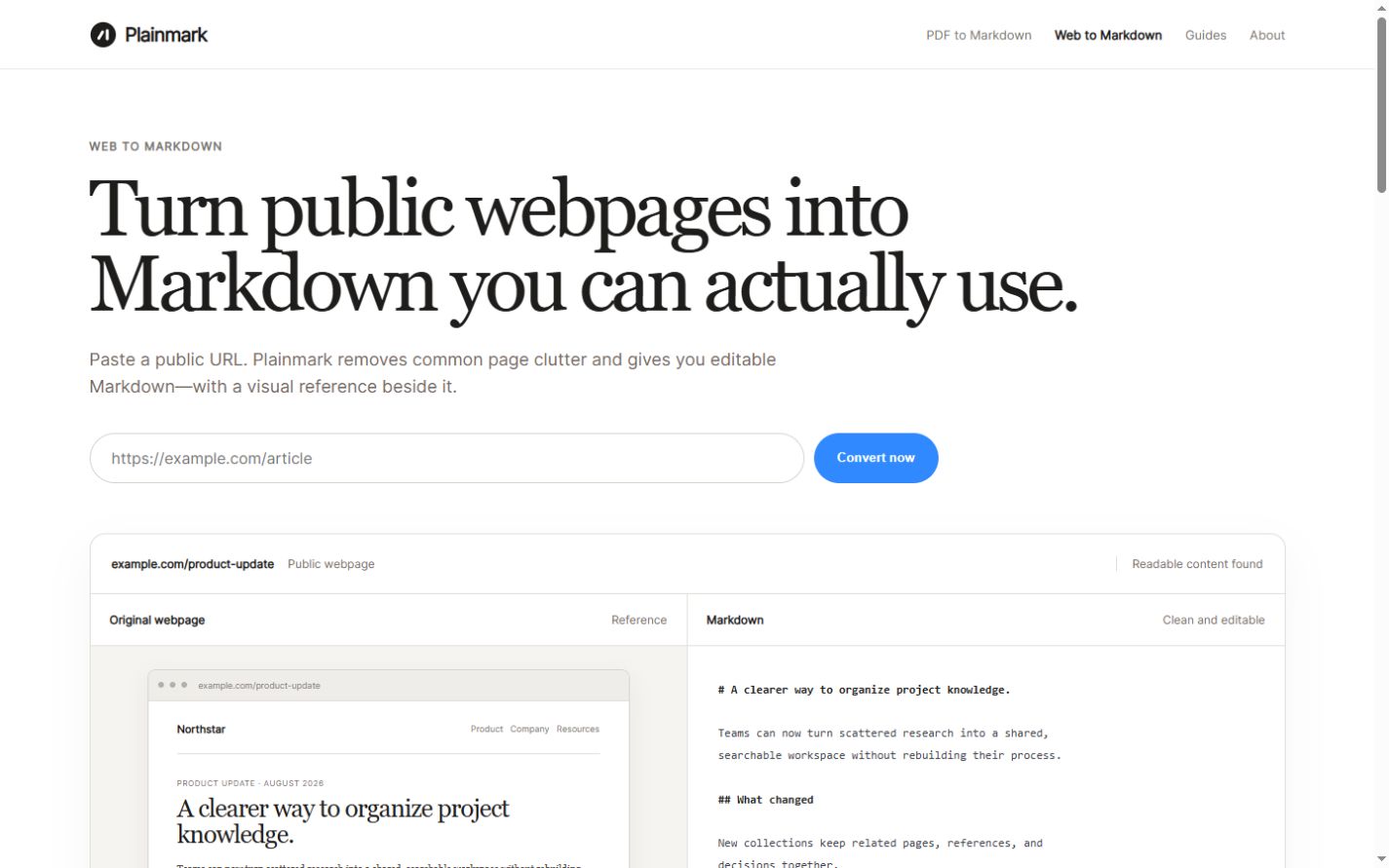
Open Plainmark Web to Markdown and paste the complete URL. The page should be accessible without an account, paywall, or private session.
2. Compare the source and the result
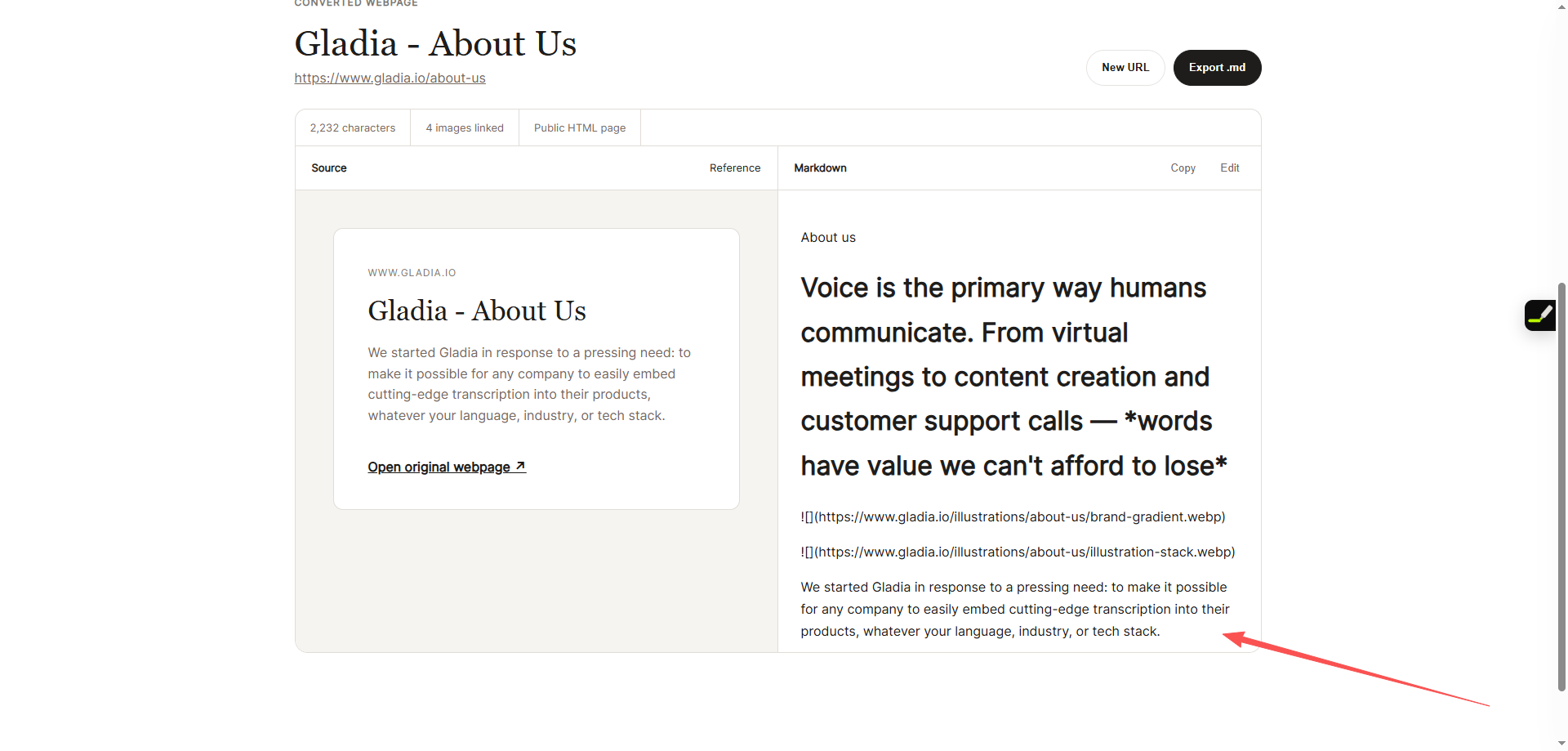
Review the visual reference beside the generated Markdown. Check that the main title, section order, links, lists, and meaningful images match the source.
3. Clean and export
Remove leftover interface labels, repeated calls to action, empty image references, and duplicated paragraphs. Fix heading levels and link text, then copy the result or export the .md file.
# Product update

The new release makes project notes easier to review.

## What changed

- Cleaner navigation
- Faster search
- More reliable exports

Source: https://example.com/product-update
What should stay, and what should be removed?
| Usually keep | Usually remove |
|---|---|
| Page title and main headings | Site navigation and account links |
| Body paragraphs and quotations | Cookie notices and pop-ups |
| Useful lists, tables, and code | Repeated promotional calls to action |
| Meaningful links and images | Decorative icons and tracking elements |
| Source URL and publication details | Duplicated headers and footers |
This is a practical default, not a universal rule. A navigation list may matter when documenting a website’s information architecture, while a promotional block may be relevant during competitor research.
Review the Markdown before reuse
Start with the answer
For research notes or AI context, keep the page’s main answer near the top. Remove introductions that only repeat the title or delay the useful information.
Check every heading level
Use one H1 for the page title, H2 for major sections, and H3 for subsections. Visual font size alone does not always reflect the page’s logical hierarchy.
Open important links and images
Relative URLs may need to be converted into full URLs. Confirm that linked sources and meaningful images still open outside the original webpage.
Remove duplication
Headers, newsletter prompts, related-post blocks, and mobile navigation can appear more than once in extracted content. Delete repeated sections that do not add evidence or context.
Keep provenance
Record the source URL, page title, author when available, and the date you accessed the page. This makes the material easier to verify and update.
Where webpage conversion can fail
- JavaScript-only pages: useful content may appear only after scripts run.
- Private or paid pages: a converter should not bypass login or access controls.
- Anti-bot protection: some websites block automated requests.
- Interactive content: calculators, maps, embedded media, and forms do not become equivalent Markdown.
- Complex visual layouts: Markdown preserves meaning better than pixel-level design.
Frequently asked questions
Can every webpage be converted to Markdown?
No. Public HTML pages with clear article or documentation content are the strongest candidates. Login pages, heavily interactive apps, and sites that block automated access may not convert.
Is Markdown better than saving the original HTML?
It depends on the task. Markdown is easier to read and edit, while HTML retains more page structure and attributes. Keep HTML when exact markup matters; use Markdown when you need a clean working document.
Can I use the result in an AI tool?
Yes, when you have the right to use the source. Review the text first, remove irrelevant material, and keep the source URL so claims can be checked. Use the RAG preparation checklist before chunking or indexing the result.
Does Plainmark crawl an entire website?
No. The current tool converts one public webpage at a time. This keeps the workflow reviewable and limits accidental collection of unrelated pages.
Turn a public page into workable Markdown.
Paste a URL, compare the source with the result, and export a cleaner document.
Convert a webpage