
Plainmark guide
How to extract tables from PDF to Markdown without breaking rows and columns.
Use the source PDF as the reference while checking simple tables, multiline cells, page continuations, and merged-cell fallbacks.

The short answer
Start with a text-based PDF, convert it to Markdown, and compare every header, row, column, and wrapped cell with the original. Simple tables can become readable pipe tables. Cross-page tables and merged cells need closer review because Markdown cannot reproduce every visual relationship in a PDF.
What can a Markdown table preserve?
Pipe tables are part of the GitHub Flavored Markdown tables extension, not the core syntax defined by CommonMark. They represent rectangular rows and columns well, but they do not natively express row spans or column spans.
| PDF table feature | Markdown handling | Review action |
|---|---|---|
| Simple header and body rows | Usually becomes a pipe table | Check every value remains under the correct label |
| Wrapped text in one cell | May use an HTML <br> | Confirm it did not become a new row |
| Table continued on another page | May be joined into one table | Check the boundary row and repeated header |
| Merged header cells | Flattened into a rectangle | Keep a warning and compare with the PDF |
| Scanned table image | Not extracted without OCR | Use a separate OCR workflow |
Extract a PDF table in five steps
1. Confirm the PDF has a text layer
Try selecting text inside the table. If the page is only an image, Plainmark does not currently perform OCR and cannot reliably recover its cells.
2. Convert the complete document
Open PDF to Markdown, upload the file, and start the conversion. Keeping the full document preserves headings and nearby explanations that help identify what the table means.
3. Count the columns and body rows
Compare the first row, last row, and any empty cells. A missing value must not cause every later value to shift into the wrong column.
4. Review wrapped and cross-page content
Check long descriptions, manual line breaks, escaped pipe characters, and the point where a table continues onto a new page.
5. Edit before export
Repair labels or line breaks in the Markdown editor, then copy the result or export the .md file. Keep the source PDF when the table contains visual relationships Markdown cannot express.
What happened in a real Plainmark table test?
We created a five-page text-layer PDF containing a standard table, multiline cells, a 24-row table split across two pages, and a merged-cell header. Plainmark detected text on all five pages and extracted five tables without OCR.
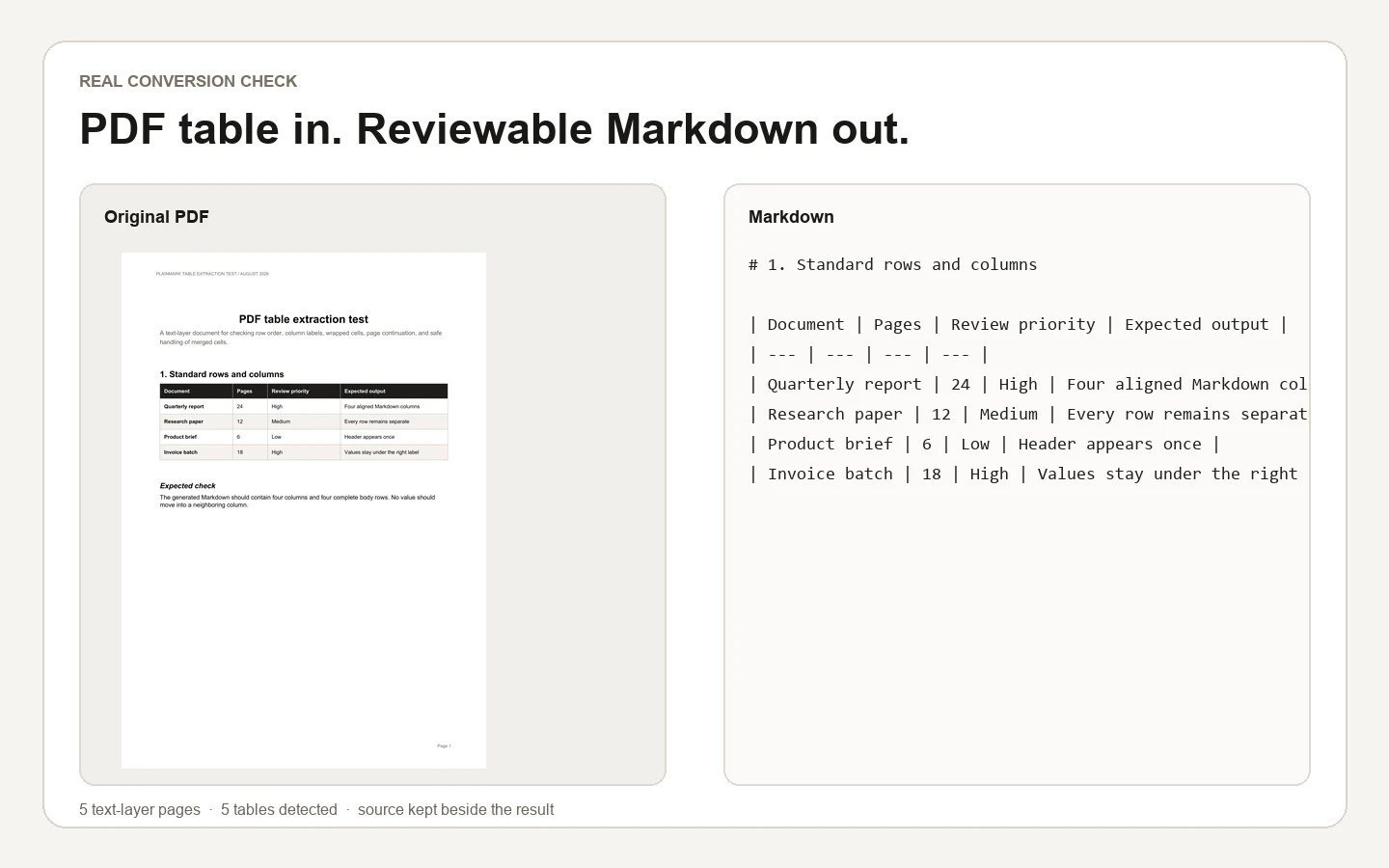
| Test | Observed result |
|---|---|
| Text layer | 5 of 5 pages contained selectable text |
| Tables detected | 5 tables |
| Standard table | Four columns and four body rows stayed aligned |
| Multiline cells | Line breaks stayed inside cells using <br> |
| Cross-page continuation | All 24 rows remained, but the page marker entered the final row |
| Merged cells | Values remained visible with a flattening warning |
Download the exact five-page test PDF and use it to reproduce the conversion. The cross-page marker is an important reminder: content completeness and formatting correctness are separate checks.
How should complex tables be handled?
What should happen to multiline cells?
Text that wraps visually should remain one logical cell. An HTML break is a practical fallback inside many Markdown renderers. If the destination does not support it, rewrite the cell as one sentence or use an HTML table.
How should a cross-page table continue?
Repeated headers can indicate that the same table continues. Merge only when column count and labels match, then inspect the boundary row. In our test, every row survived, but a page comment was attached to row 24 and needed a quick edit.
What should happen to merged cells?
Do not invent a false relationship. Flatten the visible values into a rectangular table, add a review note, and keep the PDF as the authoritative visual reference. If spans carry essential meaning, use an HTML table or manually restructure the information.
PDF table review checklist
- The table title or surrounding heading is present.
- Column count matches the source.
- Every header labels the correct column.
- Body row count matches the source.
- Empty cells keep their positions.
- Wrapped text remains inside one cell.
- Pipe characters are escaped.
- Cross-page boundaries do not add or drop content.
- Merged cells carry a visible warning or manual explanation.
Frequently asked questions
Can Plainmark extract tables from scanned PDFs?
Not currently. Plainmark works best with text-layer PDFs. A scanned table needs OCR before its rows and columns can be interpreted.
Can Markdown reproduce merged PDF cells?
Not with a standard pipe table. Row spans and column spans need HTML or a manual rewrite. Plainmark uses a safe flattened fallback so the visible values are not silently discarded.
Why can a complete table still need editing?
Completeness means the values survived. It does not guarantee that page markers, line breaks, or visual relationships are represented correctly. Compare the result with the source before reuse.
Can I export the table as CSV or Excel?
Plainmark currently exports Markdown, not CSV or Excel. You can copy a simple table into another tool after reviewing its rows and columns.
Test a table with the source still in view.
Convert a text-based PDF, compare each row, and repair the Markdown before export.
Convert a PDF